What attendees see
Attendees enter their email, fill in the registration form, get a confirmation email and land on your event pages. Each step is built for your event and in your brand.
-
Step 1
Start page
Attendees enter their email. New people go on to register, and people who already registered are signed back in, with a sign-in link if your site uses one.
We build it from your brand kit and wording
-
Step 2
Registration form
The questions your event needs, such as organization, sessions, meals or accessibility needs. Forms can change based on earlier answers.
We set it up from your list of questions
-
Step 3
Confirmation email
Sent the moment someone registers, with the event details, an add-to-calendar card and a link back to the site.
We write it with you and send you a test first
-
Step 4
Event pages
A lobby, agenda, live stream, replays and resources. What each person sees can depend on their segment.
We build them and switch them live on event day
Who does what
You tell us what the event needs and we do the building. Your team keeps an eye on registration and pulls numbers whenever you want them, without waiting on us.
We set up with you
- The site and its designStart page, registration form and event pages, built from your brand kit
- EmailsConfirmations, reminders and updates, sent from your event's name
- Text messagesYou send us the wording and timing and we schedule and send them
- Changes to registrationsTransfers, session changes and anything that affects seat counts. On events without seat limits, your team can cancel registrations yourselves
Your team does
- Watch registrations come inSee every registrant and their answers in the Backstage, any time
- Pull exportsDownload a spreadsheet of registrations, filtered the way you need
- Get notifiedAn email to your team each time someone registers. Tell us who should get it
- Review and sign offWe send screenshots of each page and email before anything goes live
From kickoff to wrap-up
Most event sites go through six stages. The time between them depends on your event, so we agree on dates at kickoff.
- KickoffWe agree on dates, pages and what registration needs to ask
- Brand and contentYou send your brand kit, wording and speaker details What to send
- Build and previewWe build the site and send screenshots for you to review
- Registration opensYou watch sign-ups and pull exports. We handle changes and texts
- Event dayWe switch pages live and send reminders on the day
- After the eventReplays go up and we send you a report with the numbers
The Backstage
The Backstage is the admin side of your site. The menu on the left holds every part of it. You'll mostly use Stats and Viewers, and we look after the rest. Hover over a number to see what it marks.
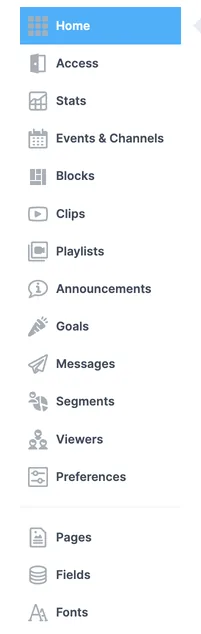
- AccessStart pages, where people land after signing in, guest lists and access codes
- StatsRegistrations, live viewers, page and replay numbers, each with a download
- Events and channelsYour event pages and the site menu
- BlocksContent sections that can appear on more than one page
- Clips and playlistsReplays, PDFs and links, grouped into playlists for the on-demand library
- AnnouncementsShort notices that pop up on event pages
- MessagesEmail templates, scheduled emails and texts
- SegmentsGroups of attendees, such as speakers or one ticket type, that decide who sees what
- ViewersEveryone who has registered, with their answers
- PreferencesSite-wide branding, profiles, sharing and tags
- PagesStandalone pages and pop-ups, such as speaker bios or a help page
Signing in to the Backstage
We add the people on your team who need access. You sign in with your email, the same way attendees do, so there are no passwords to remember.
From your event site
- Enter your email on the start pageUse the address we added to your team
- Open the sign-in linkIt arrives by email and signs you straight in
- Open the BackstageWe send you its address when your account is ready. Bookmark it
Straight to one screen
- Ask us for a direct linkIt signs you in and opens one screen, such as your registration list. Handy for staff who only need that
- Keep it to yourselfA direct link works like a password. Don't forward it or post it anywhere shared
Getting help
Your Customer Success contact is your first stop for anything about your event. For anything else, email our support team.
Include your event site address and a screenshot if something looks wrong. It helps us find it quickly.
Start with Design and branding for the files we need from you. More guides are on the Help Center home.