Two places to look
Use Viewers when you need people and their answers. Use Stats when you need numbers. Both download to a spreadsheet.
Viewers, then Registered
Everyone, with their answers
- One row per personName, email, phone, registration answers, sessions and segments
- Search, filter and sortFind one person or narrow the list to a group
- ExportThe rows and columns you're looking at, as a spreadsheet
Stats, then Registrations
The numbers at a glance
- Totals for a date rangeAll time, or the past day, week, month or 90 days
- By groupFilter to one segment or the people who chose one session
- Download CSVThe registrant list, as a CSV for a spreadsheet
The Viewers list
Every person with an account on your site is a viewer. Attendees are listed under Subscriber, and your team under Manager. The names here are sample data. Hover over a number to see what it does.
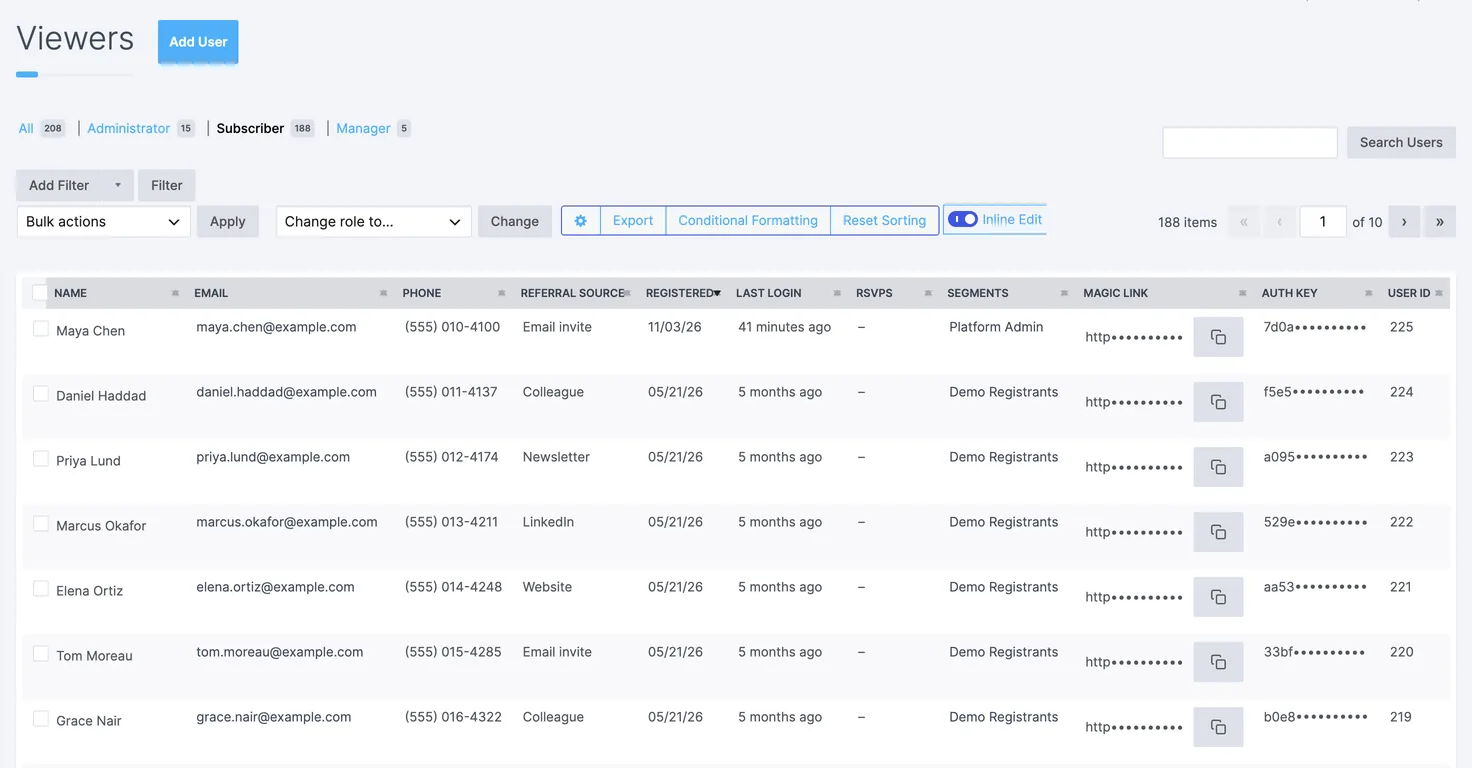
- Who's in the listSubscriber is your attendees. All includes your team
- SearchBy name or email
- Add filterNarrow by any column, like a session, a segment or a date
- ExportDownloads what you see, filters included
- Inline editFix a cell in place, such as a typo in a name
- Count and pagesHow many people match, 20 to a page
- ColumnsClick a heading to sort. Ask us to add any form question as a column
- A person's rowHover over the name to open their full record
- Sign-in linkCopy copies a link that signs this person in. Send it only to them
Filter and export
Filter to the people you want before exporting.
Step 1
Open Viewers
In the Backstage menu, choose Viewers, then Registered. Pick Subscriber to leave out your own team.
Step 2
Add a filter
Choose Add filter, pick a column and a value, then Filter. Add more to narrow further, such as one session and registered this week.
Step 3
Sort
Click a column heading. Click again to reverse it. Registered, newest first, is a good default.
Step 4
Export
Choose Export. The file opens in Excel, Numbers or Google Sheets, with one column for each column on screen.
Missing a column? Any question on your registration form can be a column in this list, and so can things like the session someone chose or how they heard about the event. Tell us which ones you want and in what order, and we'll set the list up for your team.
Registration stats
For a quick count, open Stats and choose the Registrations tab. Pick a group and a date range at the top, and the totals and list below update to match.
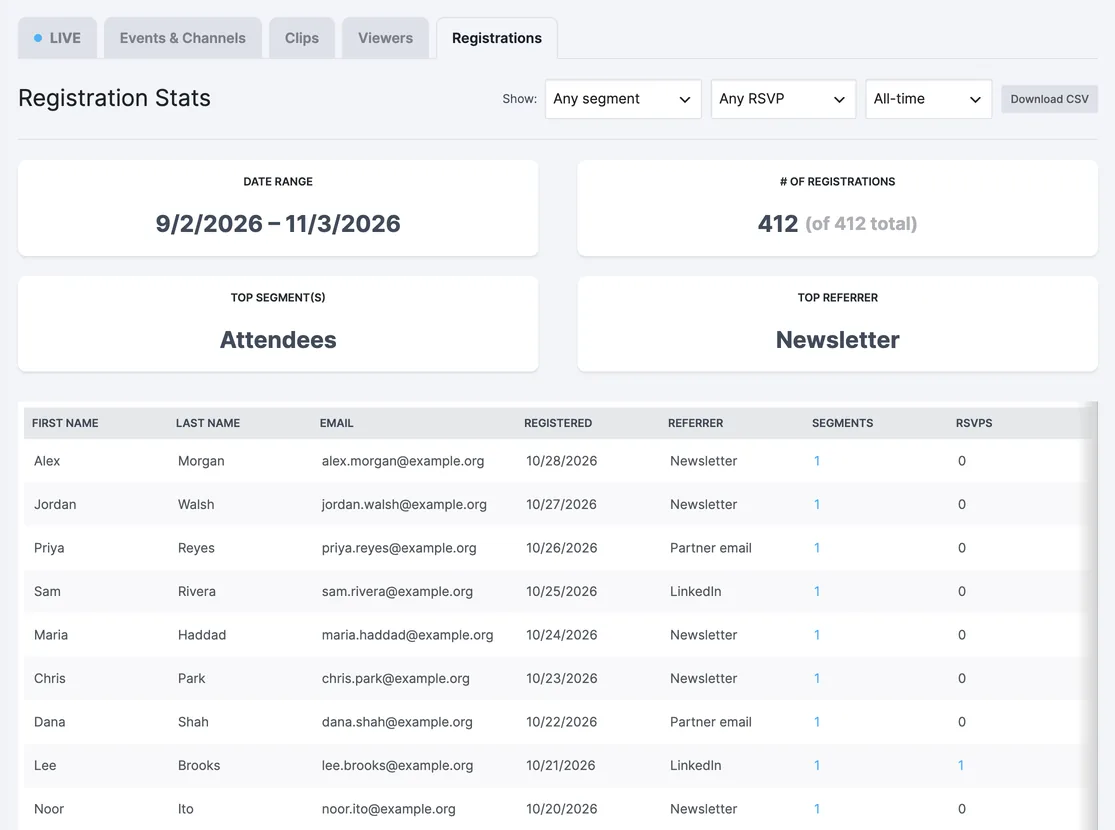
- Stats tabsLive viewers, page and replay views, people and registrations
- ShowOne segment, one session or event, and a time period
- Download CSVThe list below, as a spreadsheet
- TotalsRegistrations in the range, the largest group and where people came from
- RegistrantsNewest first. Click a number under Segments or RSVPs to see which ones
Changing or cancelling a registration
What you can change yourself depends on how your form counts seats. If nothing on your form has a seat limit, your team can fix records and cancel registrations right in the Viewers list. If your event has seat limits, a waitlist or custom registration fields, send changes to us, so the counts stay right.
No seat limits on your form
- Fix a typoIn a name, title or organization, with inline edit
- Cancel a registrationDelete the person from the Viewers list. The steps are below
- Copy a sign-in linkFor an attendee who can't get in, sent only to them
Seat limits, a waitlist or custom fields
- Cancellations and session changesWe make them, so seats free up and counts stay right. Deleting is switched off for your team on these sites
- A new email addressIt's how the person signs in, so we change it carefully
- Transfers and adding peopleMoving a registration to a colleague, or a list to bring in
Cancel a registration yourself
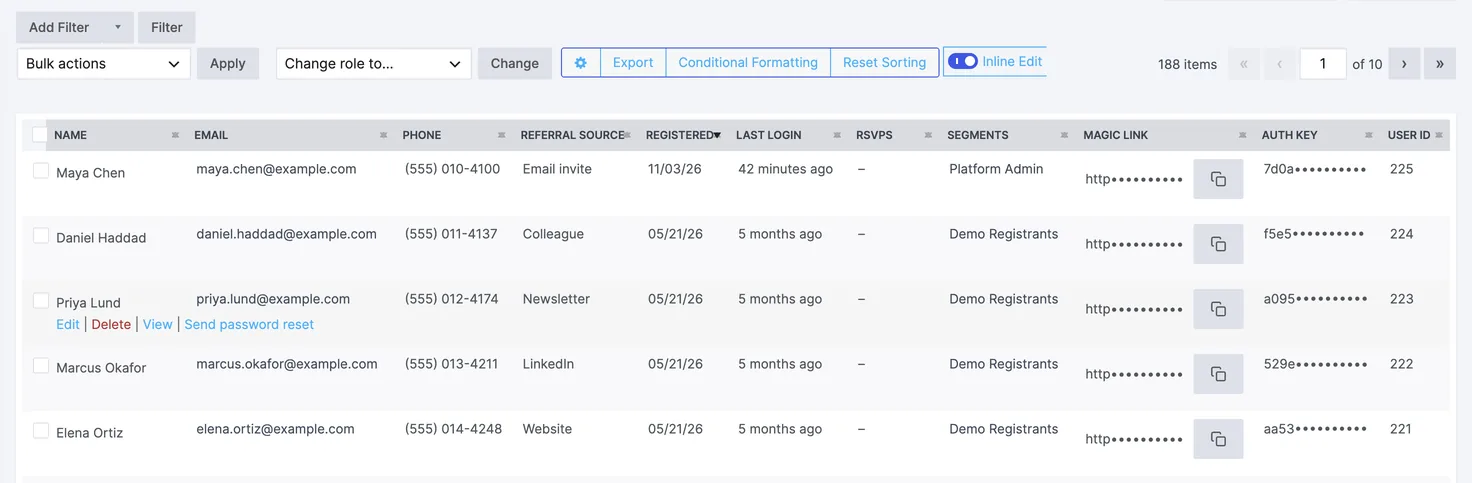
- Find the personSearch by name or email, then hover over their row
- Choose DeleteIt appears under their name. The next screen asks you to confirm
- Several at onceTick the box beside each person instead
- Bulk actionsChoose Delete, then Apply, then confirm
Deleting can't be undone. The person loses access to the site and would need to register again. Export the list first if you want a record. If you don't see Delete, your site counts seats, so send the cancellation to us instead.
Regular updates
If you don't check the Backstage regularly, ask us to send updates.
Sent to the addresses you choose, with the person's answers.
Every morning or every week, saved to a shared folder you give us.
Registrations, attendance and engagement in one page you can share.
Handling the data
Exports hold personal information: names, emails, phone numbers and sometimes health or dietary details. Treat each file the way you'd treat the list itself.
- Export only what you need. Filter to the people you need, and ask us to set up the columns the task calls for.
- Share a link, not an attachment. Keep exports in a shared folder with limited access instead of emailing them around.
- Delete old copies. Once a list has done its job, remove it from downloads and desktops.
- Sign-in links work like passwords. Send each one only to the person it belongs to.